A Keyboard Shortcut according to Wikipedia states that a keyboard shortcut (or accelerator key, shortcut key, hot key, key binding, keybinding, key combo, etc.) is a key or set of keys that performs a predefined function…
AG
Ajit GaddamOriginally published February 16, 2007
A Keyboard Shortcut according to Wikipedia states that a keyboard shortcut (or accelerator key, shortcut key, hot key, key binding, keybinding, key combo, etc.) is a key or set of keys that performs a predefined function. These functions can often be done via some other, more indirect mechanism, such as using a menu, typing a longer command, and/or using a pointing device. By reducing such sequences to a few keystrokes, this can often save the user time, hence "shortcut".
Google's Gmail service has grown to be one of the most popular web based email services out there. They were the first ones to provide 1GB of free email storage whereas other providers such as Microsoft's Hotmail and Yahoo's Yahoo mail only provided a storage space of 4MB and 2MB respectively. While other free webbased email solutions have tried to catch uo with GMail in terms of storage capacity and features, Google's GMail is still the king especially among the techie and geek community. Google's support pages do an excellent job outlining the various keyboard shortcuts, they just do a dump on you with no breakdown of your various seperate needs. I will try to break it down by categories below and in some cases, I will use Google's own words explaining GMail's shortcut features.
Caution: The keyboard shortcuts in GMail are case-sensitive.TIP: This blog allows you to print articles. Make use of the print this option in this article for a formatted page for printing.
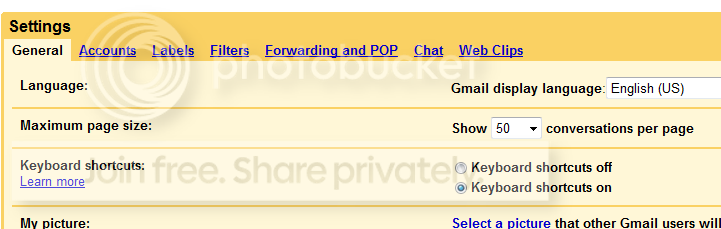
First off, verify that you have keyboard shortcuts enabled on your GMail account. To do so, login to your GMail account, then go to Settings and under the General Tab options, you will see an option to enable or diasable keyboard shortcuts in GMail.
Searching your GMail messages / conversations:
Shortcut Key
Definition
Action
/
Search
This takes your cursor to the main search box in your GMail account
Navigating through your GMail messages
Shortcut Key
Definition
Action
k
Move to Newer Conversation
Moves your cursor to a newer/recent conversation. Press Enter key to expand this conversation
j
Move to Older Conversation
Moves your cursor to the next oldest conversation. Press Enter key to expand this conversation
p
Go to Previous Message
Moves cursor to previous message in conversation. Press Enter to expand or collapse a conversation
n
Go to Next Message
Moves your cursor to the next message in the conversation.Press Enter to expand or collapse a conversation
o or
Open/Collapse a Conversation
Opens your conversation. Also, if you are in conversation view, press enter to expand or collapse a conversation
u
Refresh
Refreshes your page and returns you to the inbox, or list of conversations.
ESC
Escape from Input Field
Removes the cursor from your current Input Field
g then a
Go to 'All Mail'
Takes you to 'All Mail,' the storage site for all mail you've ever sent or received (and have not deleted).
g then s
Go to 'Starred'
Takes you to all conversations you have starred.
g then c
Go to 'Contacts'
Takes you to your Contacts list.
g then d
Go to 'Drafts'
Takes you to all drafts you have saved.
g then i
Go to 'Inbox'
Returns you to the inbox.
Writing and Sending Email
Shortcut Key
Definition
Action
c
Compose
Allows you to compose a new message. + c allows you to compose a message in a new window.
r
Reply
Reply to the message sender. + r allows you to reply to a message in a new window.
a
Reply All
Reply all Reply to all message recipients. +a allows you to reply to all message recipients in a new window.
f
Forward
Forward Forward a message. + f allows you to forward a message in a new window.
,a
Change Reply option to Reply ALL
Change a reply to a reply all. Also works with “r”, “f” to change to a forward or reply to sender only.
Delete a message
DI first reported it. Pressing the END key allows you to delete a GMail conversation. However, this only works in Opera. IE and Firefox does not support this keyboard shortcut yet.
+S
Save Draft
Holding the key while pressing s when composing a message will save the current text as a draft. Make sure your cursor is in one of the text fields -- either the composition pane, or any of the To, CC, BCC, or Subject fields
, Enter
Send Email
Tab will take you to the send option and then Enter will send your email
Acting on your Email
Shortcut Key
Definition
Action
y
Archive
Automatically removes the message or conversation from your current view.
From 'Inbox,' 'y' means Archive
From 'Starred,' 'y' means Unstar
From any label, 'y' means Remove the label
* 'y' has no effect if you're in 'Spam,' 'Sent,' or 'All Mail.'
y then o
Archive and Next
Archive your conversation and move to the next one
x
Select Conversation
Automatically checks and selects a conversation so that you can archive, apply a label, or choose an action from the drop-down menu to apply to that conversation.
s
Star a message or conversation
Adds or removes a star to a message or conversation. Stars allow you to give a message or conversation a special status
!
Report message as Spam
Marks a message as spam and removes it from your conversation list
m
Mute
Archives the conversation, and all future messages skip the Inbox unless sent or cc'd directly to you.